Design with an AI assistant
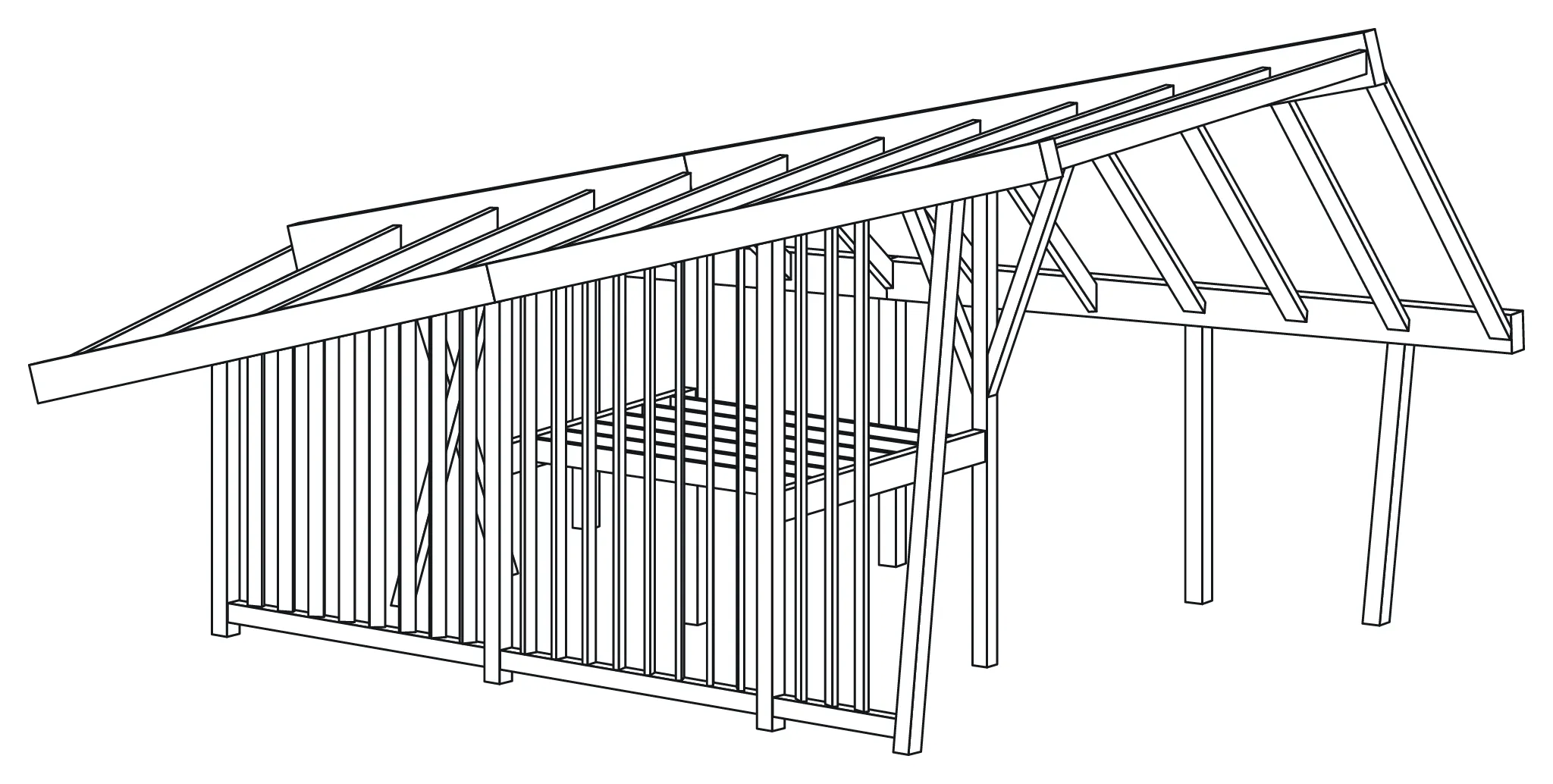
Boomkikker has a connector for AI assistants. You add it once to Claude or ChatGPT. Then you describe a timber frame in plain words, and the assistant builds it in your cloud projects, checks it and shows you drawings. You open the result in Studio with one link.
How it works
Section titled “How it works”- You add the connector address to your assistant:
https://app.boomkikker.com/mcp. - The assistant opens the Connect an AI assistant page. You sign in with your email link and click Allow.
- You write a brief. The assistant draws members, lets the engine work out the joints and parts, fixes the warnings and renders views.
- The assistant gives you a Boomkikker link. Opening it loads the project on your device, in the fitting view.
What the assistant can and cannot do
Section titled “What the assistant can and cannot do”| It can | It cannot |
|---|---|
| Create, read and change your cloud projects | Delete projects |
| Validate a project and apply suggested repairs | Change sharing or reach other accounts |
| Render views, close-ups, plans and sections | Export BTLx, BVN, BVX or BTL files: do that in Export |
| List quantities by profile, grade or object | Check the structure: the drawings are not a structural check |
The assistant runs on your own Claude or ChatGPT plan. You need a Boomkikker account for the cloud projects; see Sharing and cloud.
Limits per account
Section titled “Limits per account”| What | Limit |
|---|---|
| Tool calls | 1,200 per hour |
| Renders | 60 per hour, 300 per day |
| Applied operations | 20,000 per day |
| Cloud saves, shared with the app | 600 per hour |
When you reach a limit, the assistant gets a message saying so. Wait and continue later.
- Set it up: Claude or ChatGPT.
- Pick a model: Choose a model.
- Write a good brief: Get good results and Design briefs to copy.