Export files
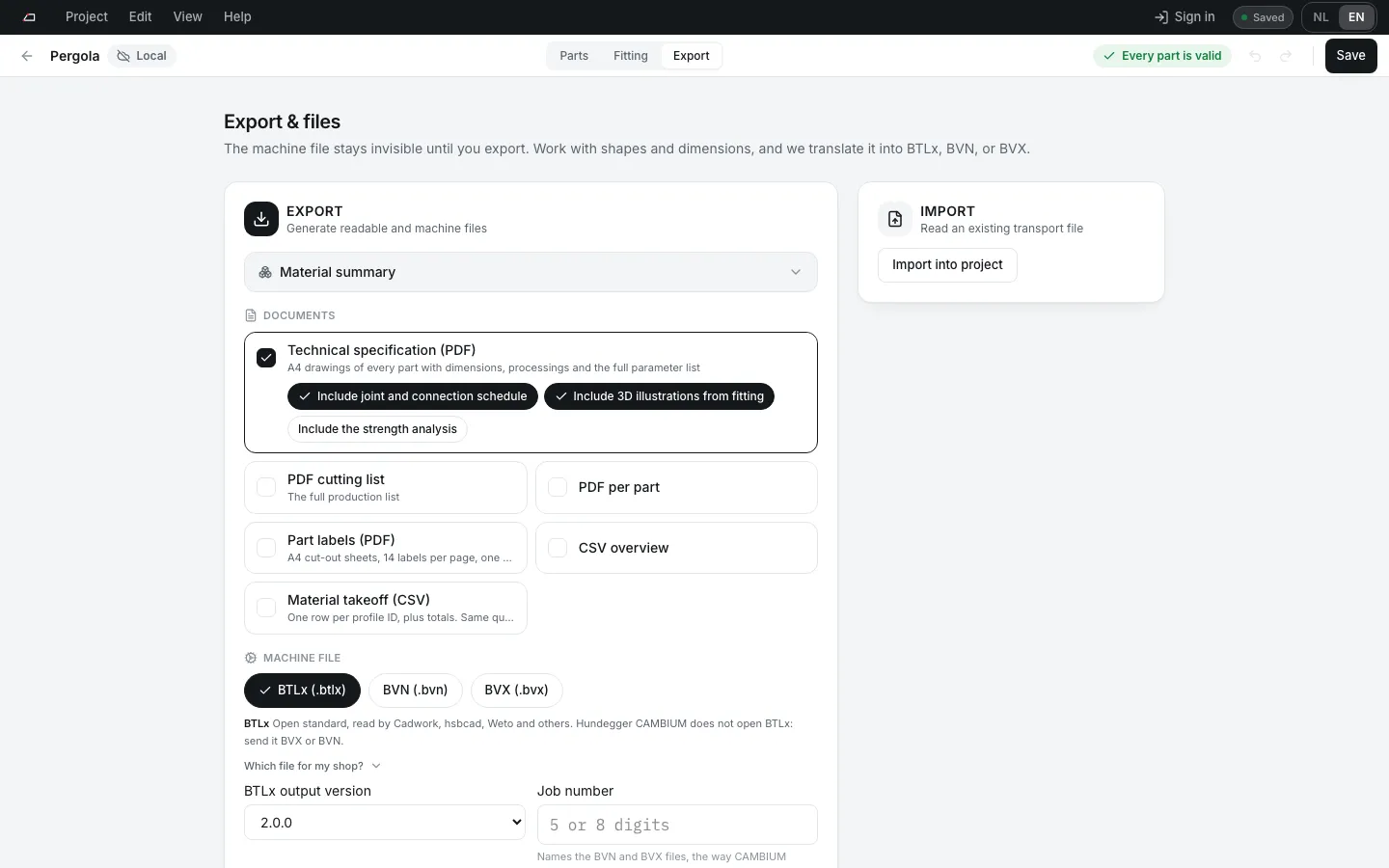
Export turns the project into files for the workshop and the machine.
Make the files
Section titled “Make the files”- Click Export in the project bar, or press Ctrl+Shift+E.
- Tick what you need under Documents, and pick a format under Machine file.
- For BTLx, pick the BTLx output version: 2.0.0 or 2.3.1.
- For BVN, BVX or BTLx, check the Job number.
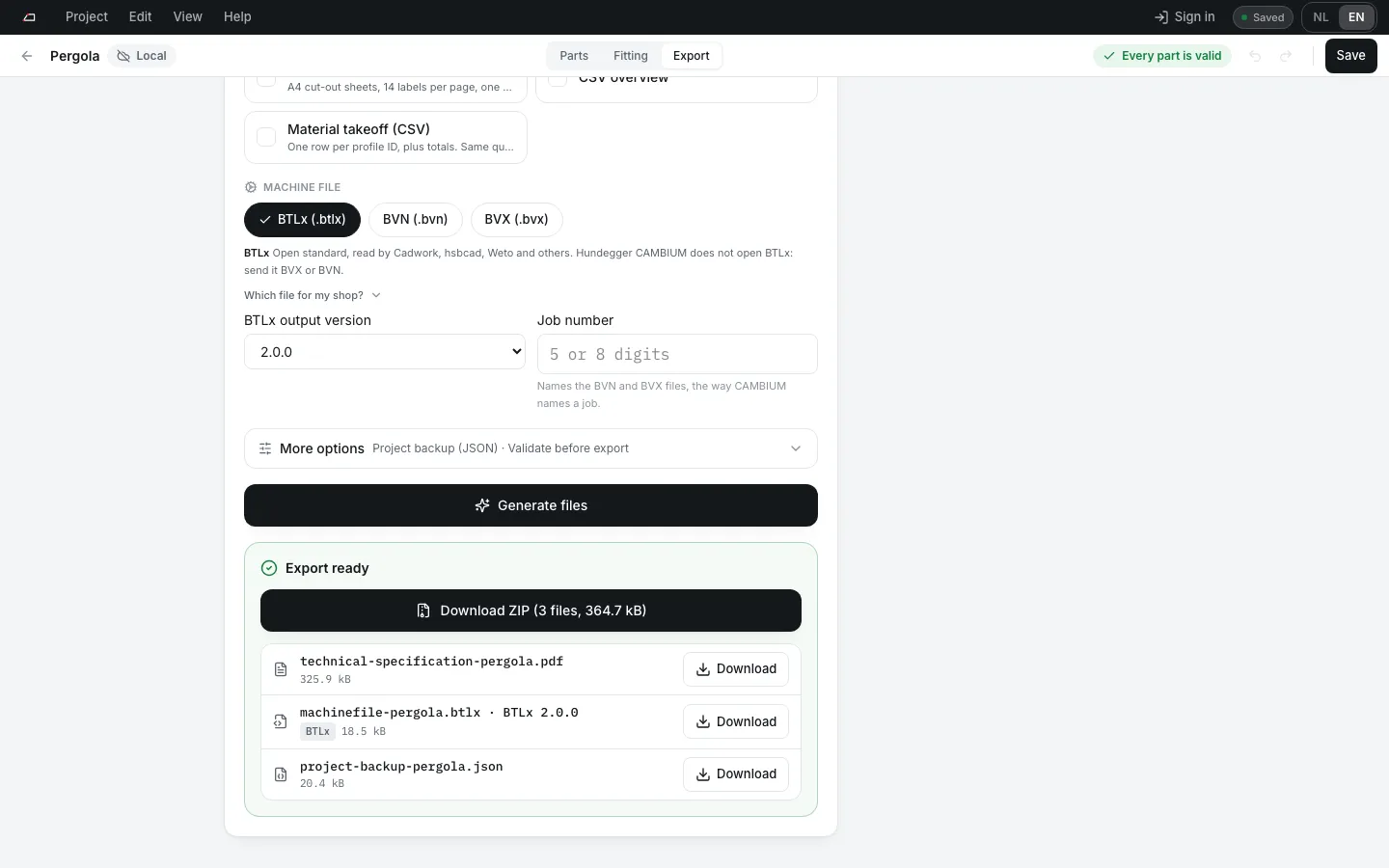
- Click Generate files.
- Click Download ZIP for every file at once, or Download next to one file.
The options
Section titled “The options”| Option | What you get |
|---|---|
| Technical specification (PDF) | A4 drawings of every part with dimensions, processings and all parameters. On by default. |
| PDF cutting list | The full production list. |
| PDF per part | One PDF with a page for each part: its end shapes and processings. |
| CSV overview | The list as a spreadsheet file. |
| BTLx (.btlx) | The open machine standard, read by Cadwork, hsbcad, Weto and others. Hundegger CAMBIUM does not open it: send it BVX, BVN or BTL. |
| BVN (.bvn) | Hundegger fixed-column format. CAMBIUM imports it. |
| BVX (.bvx) | Hundegger’s own format, written the way CAMBIUM writes it. Writes every end shape except an inward V notch. A free contour that no standard operation makes goes out as CAMBIUM’s own outline, with a note. |
| BTL (.btl) | The older design2machine text format (BTL 10.6), for CAMBIUM and other software that opens BTL but not BTLx. CAMBIUM reads it: see BTL below. |
| Project backup (JSON) | The whole project, to open again later. On by default, under More options. |
With a fitting, the technical specification can add the connection schedule, 3D illustrations and the strength analysis. Click them on or off under the option.
The technical specification prints in black and white. Click Colour version under it for a second PDF beside it, with the wood and the machined faces in the Signal colours of the 3D view.
More options holds Combine identical parts, Project backup (JSON) and Validate before export. The line under it shows which are on.
When there is more than one file, Download ZIP gives them all in one ZIP. With a single file, the button downloads that file.
Machine file starts on the format the project came in: a project made from a BVX file starts on BVX. A new project follows the machine chosen under World properties in Fitting, and otherwise starts on BTLx.
Each processing page lists what each machine format supports. Start at the processing index.
Part numbers in BVN and BVX
Section titled “Part numbers in BVN and BVX”BVN and BVX give every part a whole number of its own, and both files number a project the same way. A part keeps the number its name starts with, so 12a goes out as 12. A part whose name gives no number above zero, such as A1, or whose number an earlier part already has, gets the lowest free number, and the export says which. Its own name goes along in the file as a comment, Nr 12a, just as CAMBIUM writes it, and BVX and BVN bring it back when you import the file.
Which file for my shop
Section titled “Which file for my shop”- A Hundegger shop that works in CAMBIUM opens BVN, BVX or BTL. CAMBIUM does not import BTLx. A
.btlxrenamed to.btlstill fails; the app’s BTL is a real BTL file, written in that format’s own text. - In the shop’s September test CAMBIUM read our BVN most completely: nearly every operation came back as meant. Send BVN unless a part needs something only BVX or BTL carries, such as a free contour that stops at a depth.
- Every file lists what it leaves out, and what no machine has confirmed yet. Read Check before you send before you mail the file, and tell the shop about the parts it names.
- Cadwork, hsbcad, Weto and most other machines read BTLx.
- When in doubt, ask the shop which file it opens.
Work no shop has confirmed yet
Section titled “Work no shop has confirmed yet”Some forms are written in the shop test pack before any shop has read them, such as a parallelogram housing or an angled bore in BVN. When your parts have them, the export lists them under Work no shop has confirmed yet, each with its parts. They go into the file by default, and the file names them in a note, so the shop knows which parts to check before they are cut. Choose Leave out on a row to keep that form out of the file instead; it is then listed with the other omissions.
Preview of the exported part shows a part as the file makes it, for BVN, BVX and BTL. Work the file carries is cut into the part; work it has not confirmed yet is marked amber; work it leaves out is drawn dashed in red, with the reason below. Pick another part or file above the view.
BTL exports the public design2machine 10.6 specification. Choose Standard for build 10602, or CAMBIUM 2026.01 for build 10601 and the shop-tested adjustments. Standard is the default. Receiver warnings name records that a machine has not confirmed or has previously read differently.
Standard precision writes hundredths of a millimetre or degree in eight-character fields. Fine precision writes thousandths in twelve-character fields. Both use UTF-8, CRLF and no BOM. Check that the receiving software accepts the selected profile and precision.
BTL carries the standard single-part operations, including roof cuts, notches, housings, front mortises, dovetails, decorative profiles and spherical surfaces. Add them under Standard machining, with named physical parameters and an optional reference plane. Free contours can be open or closed, include arcs and inclined walls, and link an upper and lower outline. Existing processings export through the same shared geometry.
Valid specification records go into the file without shop confirmation. Text retains accents and other Unicode letters, including line breaks; quotes and arbitrary backslash escapes cannot be machined by this grammar. Understood imported operations are re-encoded. Opaque machining and features BTL cannot carry, such as countersinks, allowances and splinter-free instructions, are listed as omissions. Parts or machining that cannot be encoded are omitted with their reason; no replacement cut is invented.
The preview uses nominal tools where the record leaves the tool choice to the machine. Inspect the receiving software before cutting, especially for forms marked with a caveat. Export does not imply that every machine supports every record. BTL import, panels, nesting and prefabrication are outside this export.
BTL coverage
Section titled “BTL coverage”This column describes what goes into the file, within the specification’s parameter ranges. Receiver confirmation is separate: CAMBIUM imported the earlier round 24107 files, but that does not confirm every operation, profile or precision. A known receiver problem produces a warning while a valid standard record remains available.
| Feature | BTL 10.6 | Standard record |
|---|---|---|
| Square, single, half, double, compound and double-tilted end cuts | Written | 010 / 011 |
| Inward V, including tilted | Written | 011 |
| Multi-plane end | Written | 010 per plane |
| Written | 039 | |
| Inclined, overhanging, through or oriented pocket | Written | 039 |
| Pocket at an end | Written | 039 |
| Parallelogram pocket | Written | 039 |
| Turned inclined pocket | Written | 039 |
| Pocket with tilted walls | Written | 250 + 250 |
| Free contour: open, closed, arcs and inclined walls | Written | 250 |
| Saw incision with explicit kerf | Written | 016 |
| Saw pass, including inclined | Written | 013 |
| Through or stopped rebate, groove | Written | 032 |
| Sloped rebate | Written | 250 + 250 |
| Drilling | Written | 040 |
| Drilling with countersink (bore retained, countersink omitted) | With a limitation | 040 |
| Angled drilling, including shallow axes | Written | 040 |
| Mortise | Written | 050 |
| Turned or angled mortise | Written | 050 |
| Tenon | Written | 050 |
| Inclined or angled tenon | Written | 050 |
| Housed tenon, mortise or dovetail (four forms) | Written | 052 / 053 + 050 / 055 |
| Dovetail tenon (receiver-selected cutter) | With a limitation | 055 |
| Dovetail mortise or angled tail (receiver-selected cutter) | With a limitation | 055 |
| Plain dovetail | Written | 138 |
| Tyrolean dovetail | Written | 136 |
| Step joint | Written | 080 |
| Heel joint | Written | 080 |
| Double step joint or step-joint notch | Written | 080 |
| Birdsmouth | Written | 020 |
| Full or partial width lap | Written | 030 |
| Full width lap at an end | Written | 030 |
| Turned lap | Written | 030 |
| Angled lap | Written | 030 |
| Lengthwise slot | Written | 016 |
| Crosswise slot, partial or full face | Written | 016 |
| Simple scarf | Written | 070 |
| Scarf joint | Written | 071 |
| Log-house joint | Written | 037 |
| Round arch | Written | 104 |
| Square or angled marking | Written | 060 |
| Unicode and multiline text (grammar restrictions apply) | With a limitation | 061 |
| Whole or partial planing | Written | 090 |
| Chamfer | Written | 036 |
| Centred or off-centre end bore, including flat bevels | Written | 040 |
| End-face mortise | Written | 051 |
| End-face recess, all three forms | Written | 250 |
| Through or hidden end slit | Written | 250 |
| End-face contour | Written | 250 |
Angled blind bores preserve depth along the drill by converting it to BTL’s perpendicular depth. Through bores include enough travel to clear their exit. Very shallow axes use an explicit reference plane. A countersunk bore on a flat bevel keeps its main bore and lists the countersink as an omission.
BTL 040 has no countersink field. This exporter does not yet replace a countersink with separate contour machining, so that detail is omitted. Joint allowances and splinter-free settings have no corresponding fields in the standard records we write. Dovetail undercut, saw blade width for a single pass and arch roughing depend on the receiver’s tool choice. Text cannot contain literal quotes or arbitrary backslash escapes. The export names each omitted detail; check what remains to be done at the machine.
The app does not import BTL. Its BTL reader validates exports; it does not create editable projects. BTLx, BVN and BVX import remain available under Machine import.
Job number
Section titled “Job number”Job number names the BVN, BVX and BTLx files the way CAMBIUM names a job. Job 24105 for the project PROEF 24105 gives 24105.BVN, 24105_PROEF 24105.bvx and 24105_PROEF 24105.btlx. A job number has 5 or 8 digits.
A file named like 24105_PROEF 24105.bvx or 24105_PROEF 24105.btlx fills in the job number and the project name when you import it. Dropped on an open project with another job number, such a file opens as a new project by default.
Findings and export reports
Section titled “Findings and export reports”Design diagnostics, structural findings, unreviewed templates and stale approvals leave downloads available. Available experimental mappings go into the file by default and retain their experimental label. No acknowledgement or sign-off is required, and export also works offline.
Each machine export includes a readable .report.txt and a .manifest.json. They record omitted parts and machining, each reason, experimental mappings, structural inputs and findings, template checks, and the engine and application identity. The same findings appear on the export screen. Successful file generation says that a file was made; it does not mean the construction or machine setup has passed validation.
Valid unsupported source records are preserved when the selected format can carry them unchanged. Otherwise they are omitted and listed by part and processing. A part with mandatory values that cannot be encoded is omitted as a whole. Export stops for invalid input or an I/O failure, no encodable parts, or a file that cannot satisfy the selected format’s syntax.
Check the parts, omitted work, tools, supports and machining in the receiving software and at the machine before cutting. Connection capacity has not been assessed by the member strength solver.
Import into project reads a machine file and adds its parts to this project.
Shop diagnostics
Section titled “Shop diagnostics”Add an optional machine profile in export review. Give it a name, record the source of its tool information, then add tools by hand or from observed BVX labels. Confirm each tool’s kind, diameter and usable cutting reach; for a dovetail cutter, also confirm its flank angle. A number in a tool name is only a suggestion, and its stated length is not a confirmed cutting reach.
The review checks drilling dimensions, clearance and reach for flat rectangular milling, and dovetail flank angle and reach. Mark the inventory complete only after checking it. Missing or unconfirmed information means Not assessed. A dimensional match still needs a setup and toolpath check in the receiving software.
For a drill, you can also confirm shank diameter, stick-out, holder diameter and holder length. Stick-out runs from the drill tip to the holder nose. The review checks their space during a straight drilling feed against the uncut timber and reports Clear against stock envelope, Possible stock collision or Not assessed. Close contact remains uncertain. Earlier cuts, clamps, machine movement and overtravel are not included; review those in the receiving software. Other machining forms keep their dimension checks but have no access assessment yet.
Historical CAMBIUM observations show their raw codes without a pass/fail interpretation. Records with an uncertain source stay unlinked; linked records become stale when their machining changes. Your profile travels with the project and can be undone or removed. These advisories do not change machining, the corner-repair mill diameter, export availability or exported machine files.