Make your first cutting list
You make one part with a bolt hole and send it to the workshop as a PDF cutting list and a BTLx file.
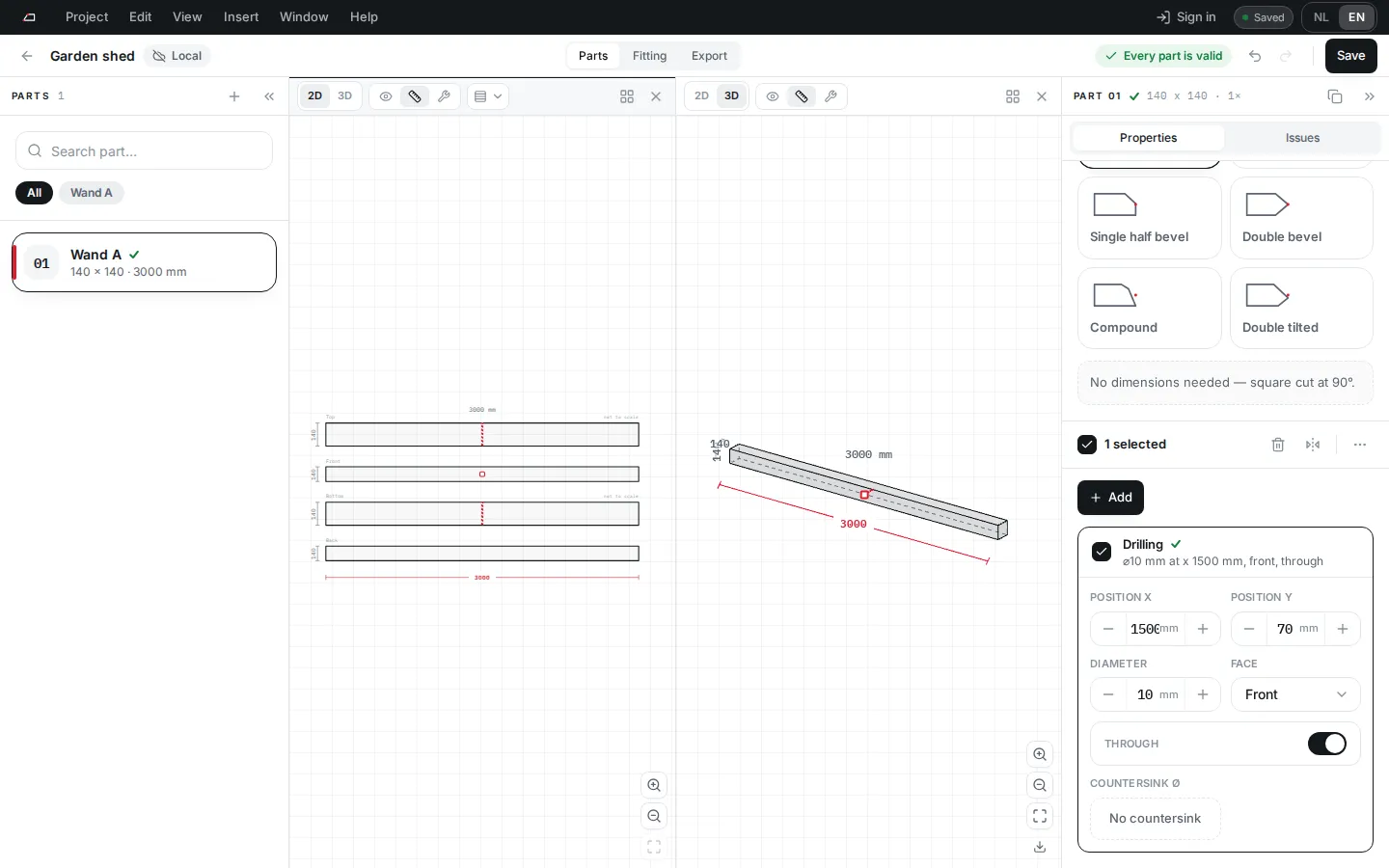
- On Projects, click New cutting list.
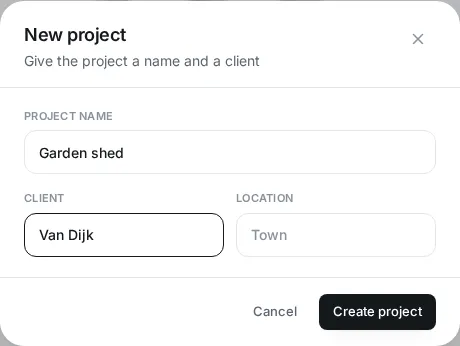
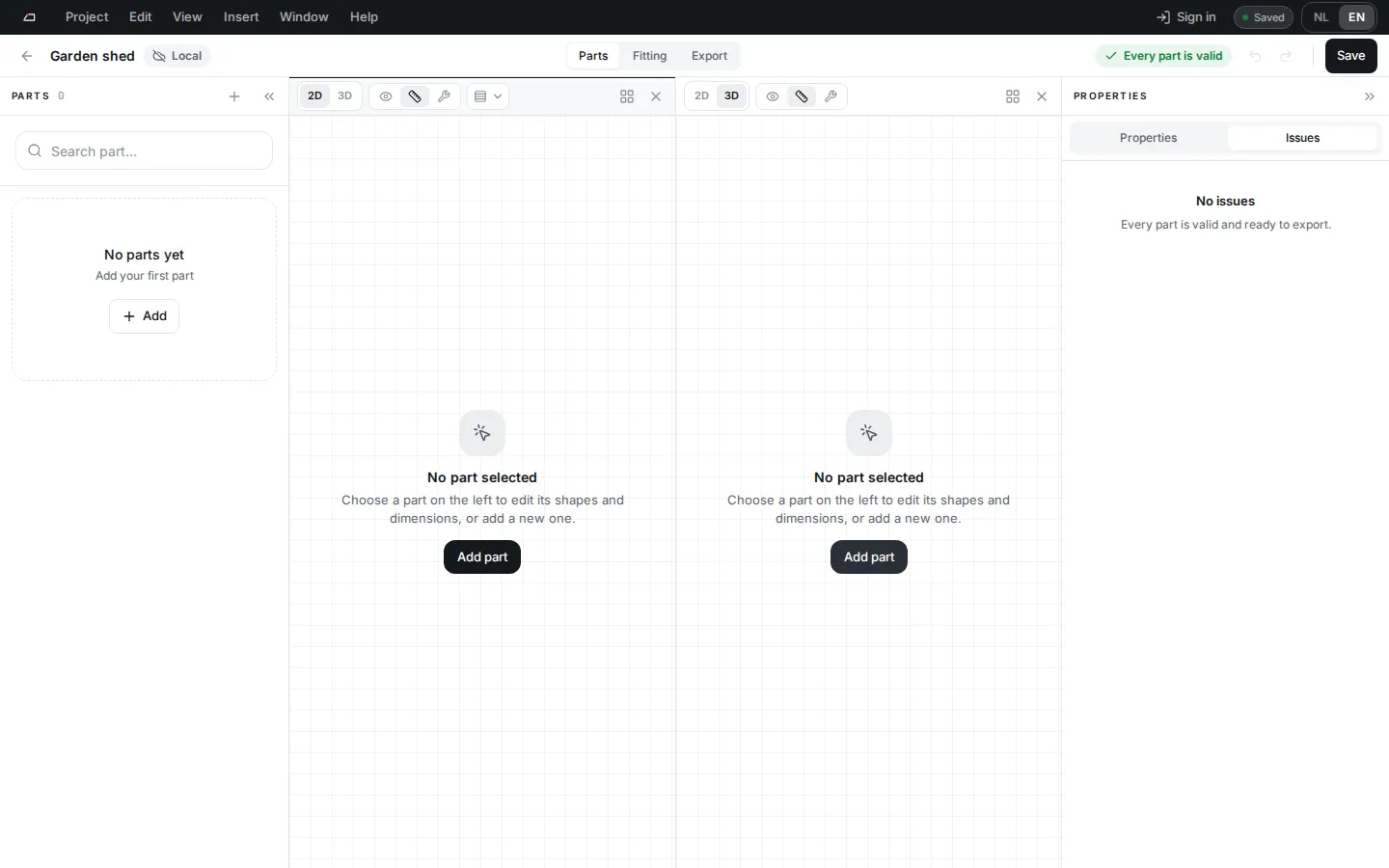
- Type a Project name. Client and Location are optional. Click Create project. The project opens on Parts.
- Click Add part. Pick a Profile, set Quantity and Length, and choose a shape under Start processing and End processing. Click Create part.
- Under Extra processings, click Add. Type
drilland pick Drilling. - The new drilling opens below its card. Set Position X, Position Y and Diameter.
- Check the status at the top right. Every part is valid means the cutting list is ready. If it shows errors, click it to open Issues.
- Click Export in the project bar. Tick PDF cutting list as well, and keep BTLx (.btlx) on.
- Click Generate files, then Download ZIP.
Next steps
Section titled “Next steps”- Learn the screen: The workspace.
- Try a finished project: Examples and templates.
- Look up any processing: Processing index.