The workspace
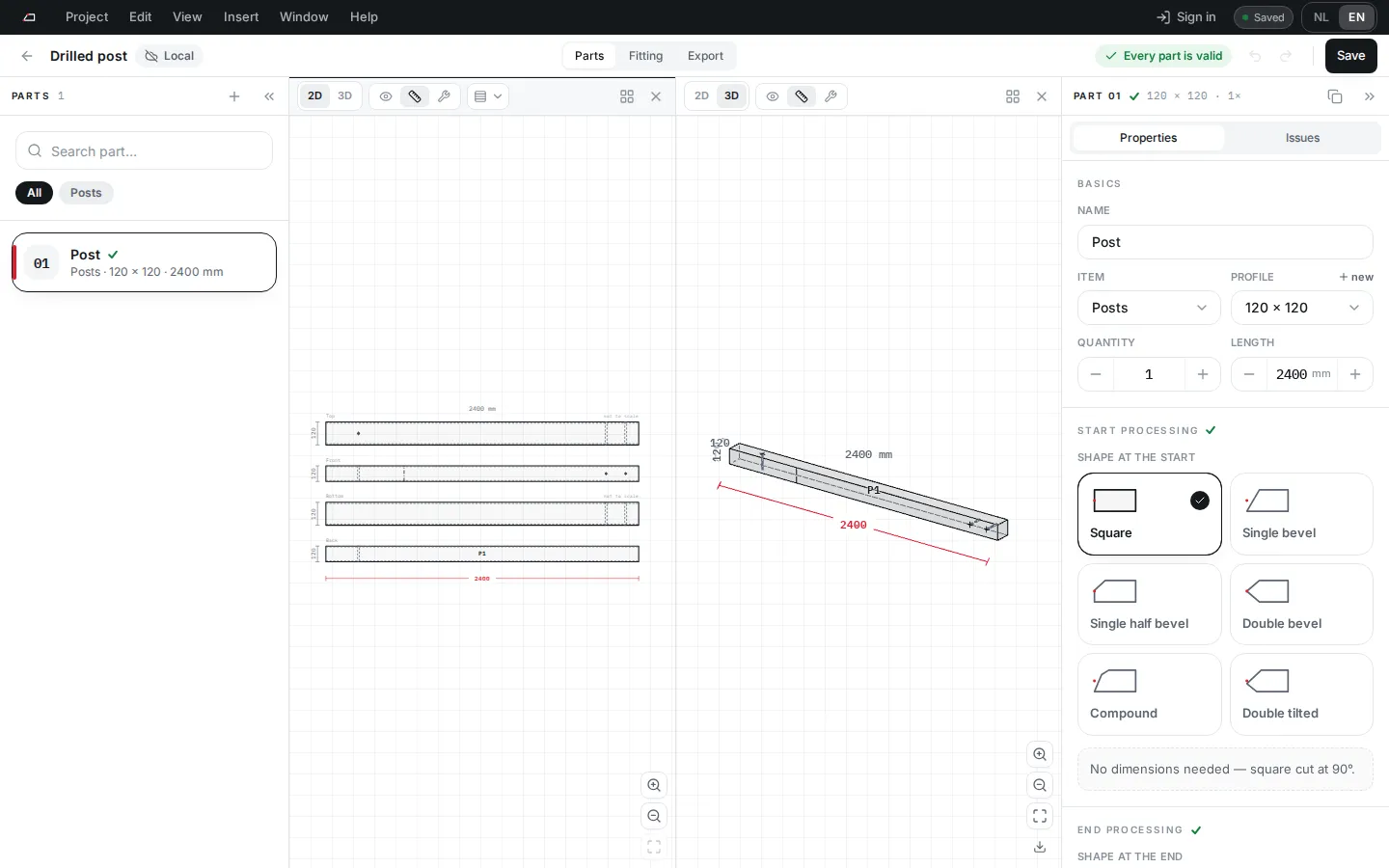
The screen has five areas, from top to bottom and left to right.
| Area | What it holds |
|---|---|
| Menu bar | Project, Edit, View, Insert, Window and Help, plus the app version and Sign in. The language is under View > Language. |
| Project bar | Back to projects, the project name, the cloud state, the switch between Parts, Fitting and Export, the status, undo and redo, and Save. |
| Parts list | All parts of the project, with Search part… and a filter chip per item. |
| Viewports | Drawings of the selected part. Each viewport has a 2D and 3D switch and three view modes: Clean, Dimensions and Machine. |
| Properties panel | The Properties and Issues tabs for the selected part. |
Change the layout
Section titled “Change the layout”Open Window to pick a layout: One viewport, 2D beside 3D, 2D above 3D or Four viewports. You can also split a viewport side by side or stacked, and close one. A project shows up to four viewports.
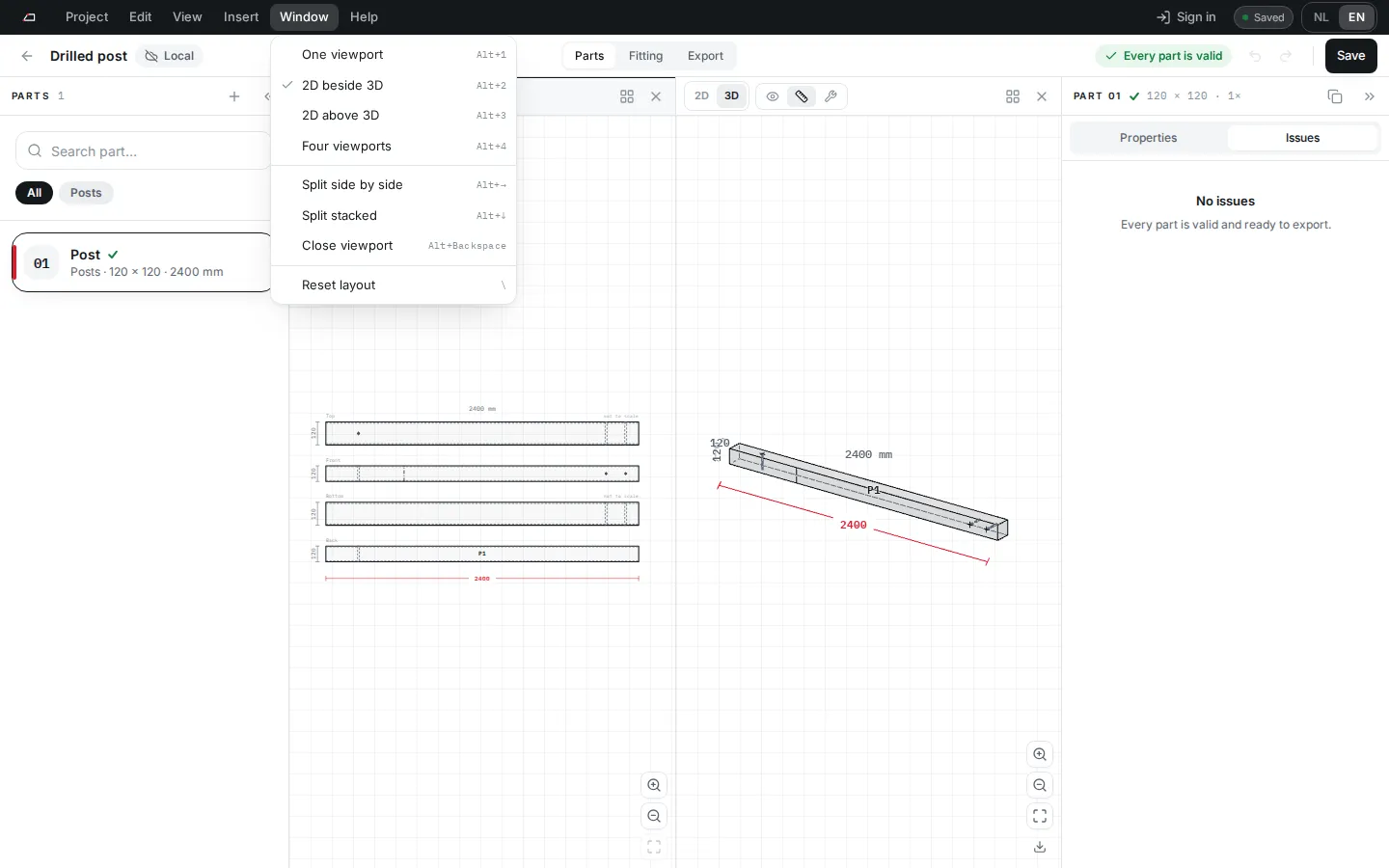
Hide the side panels with View > Show parts list and Show properties, or press [ and ]. Press \ (backslash) to reset the layout.
Fitting and Export
Section titled “Fitting and Export”Fitting swaps the parts list for an outliner of members and points, and shows the 3D assembly. See Fitting. Export shows the file options. See Export.
Get help
Section titled “Get help”Open Help > Help: … for the page about the screen you are on, or press F1. A right-click on the model, the outliner, the parts list or the project list ends with Help, which lists the pages about what you clicked. The documentation opens in a new tab.
For a question these pages do not answer, use the contact form or mail hello@brandnewlevel.com. Help > Contact opens the same form.
Drop files on the window
Section titled “Drop files on the window”Drag a file from your computer onto the window, in a project or on the project list. The app reads what the file is and asks what to do with it.
| You drop | You can |
|---|---|
| A project backup (.json) | Open as a new project. The open project stays as it is. |
| A machine file (.btlx, .btlz, .bvn, .bvx) | Add the parts to the open project, or make a New project from this file. |
| A 3D model (.obj, .glb, .gltf, or a .zip with one) | Use as reference model, Convert to parts, or make a New project from this model. |
| One or two images | Place as a reference image, or Scan into a 3D model. |
| Three or more photos, or a video | Scan into a 3D model. |
The likely choice is already selected: press Enter to take it, or Esc to cancel. On the machine import, 3D import and scan screens, a file dropped anywhere goes to that screen straight away.
Project > Open file… picks a file from your computer and offers the same choices as a drop. When the app is installed, a machine file you open with it from your file manager goes to the machine import.