Parts editor
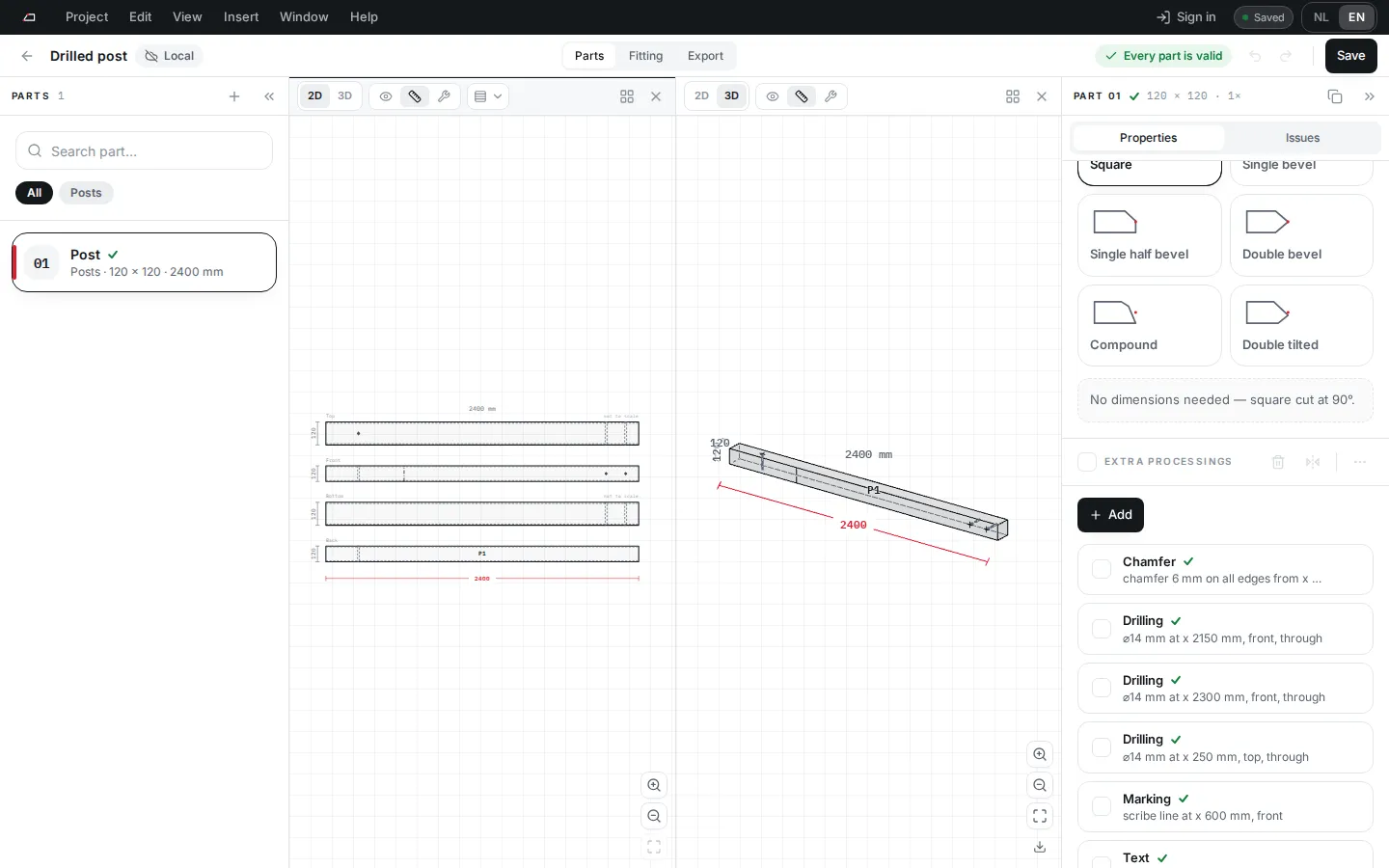
Parts is where you edit each part of the cutting list. Select a part on the left; its drawings show in the middle and its fields on the right.
Add a part
Section titled “Add a part”- Click Add part in the parts list, or use Edit > Add part….
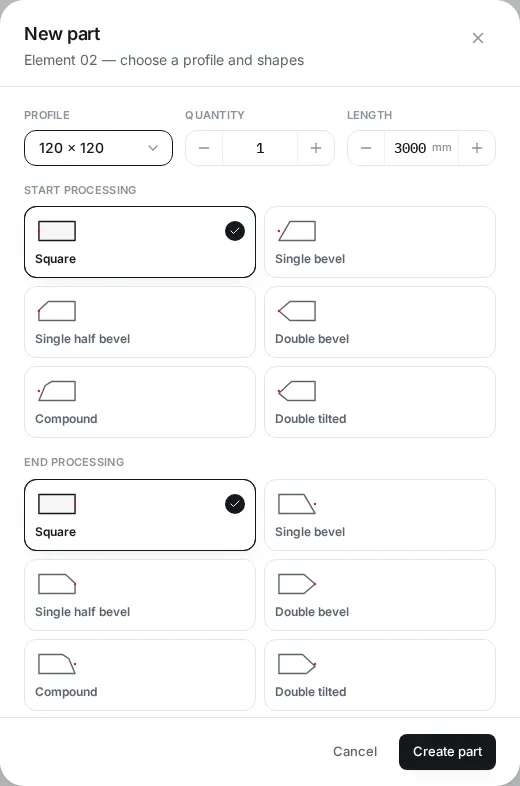
- Pick a Profile. Click + new next to it to add a size.
- Set Quantity and Length.
- Pick the shapes for Start processing and End processing.
- Click Create part.
End shapes
Section titled “End shapes”Each end is Square, Single bevel, Single half bevel, Double bevel, Compound or Double tilted. A shape other than Square asks for its angles and sizes.
The Offset of a Single half bevel sets the whole cut back from the end, knee and all, the way the machine cuts it. The drawing then shows the Finished extent beside the nominal length. When the cut leaves a straight part beside the knee, you can also drag that part’s corner to move the cut.
The parts list, the cutting list, the CSV and the part labels give such a part at its finished length, and so does the parts table of the technical specification. The same goes for a part that ends in a step joint. The part’s own page in the cutting list also names the nominal stock, because its end cuts and positions are measured from that stock. The Length field keeps the nominal length. BVN and BTLx files keep that length too and cut the end back, while a BVX file gives the part its length up to the finished end, as CAMBIUM does. The material summary still counts the stock.
Extra processings
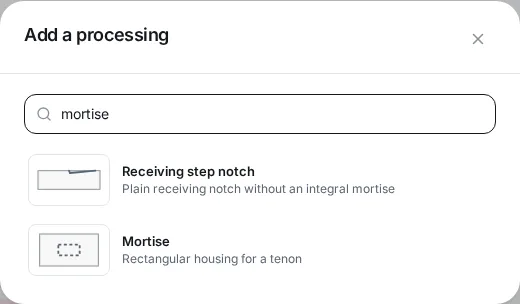
Section titled “Extra processings”Under Extra processings, click Add and search the list. See the processing index for every type.
- Tick several processings to Delete, Mirror or open More actions: move, duplicate, repeat, group, align, distribute or Save as pattern.
- Turn the selection with the turn button in the same bar: 90° left or right, 180°, or any angle, about the middle of the selection or each processing’s own middle. Or press R, type an angle and press Enter: the drawing shows the turn as you type, and Enter on its own turns 90° left. Esc leaves everything as it was. Shift+R turns 90° right. With two or more selected, the drawing puts a frame around them with a round knob on top: drag the knob to turn them, in steps of 15°, or freely while you hold Cmd (Ctrl on Windows). A group turns as a whole, and a processing that cannot turn that far is named and left as it is.
- A notch turns only in quarter turns. To turn one by any angle, choose Convert to free contour in the turn menu: it becomes a free contour that cuts the same timber.
- Press the arrow keys to move the selection 1 mm, or 10 mm with Shift.
- A saved pattern works on any part in any project on this device.
Drawings
Section titled “Drawings”Switch each viewport between 2D and 3D. Pick a view mode: Clean, Dimensions or Machine. In 2D, pick which side to show.
End faces
Section titled “End faces”Under the four side views, the 2D drawing shows the two ends of the part: Face at start on the left and Face at end on the right, each seen from outside with the top up. A letter on every edge says which side is which, and Machine adds the reference sides a machine file uses. Pick Face at start or Face at end under Side to show one end on its own.
An end view draws the section with its chamfers, the laps and slots that run out of that end, and the tenons, dovetails and scarfs that start there. An end that is not cut square, or that a joint or kept machining from an imported file works, says why nothing can go in it. An end cut by one flat bevel says it takes only a bore along the grain. Work an imported file has in an end face that the app keeps as it is shows there as a count, not read (1). The part drawing in the PDF shows the two ends as well when a part has work in an end or such kept machining.
Work goes straight into an end as well: an End-grain bore, an End-grain mortise, an End-grain recess, an End-grain slit or an End-grain contour. Show one end on its own, click Add under Extra processings and pick one: it goes into the middle of that end. Place it by dragging it in its end view, set its depth from the bite it takes in the side views, and move a drilling, a mortise or a free contour between a long face and an end with its Face list.