Import a machine file
Deze inhoud is nog niet vertaald.
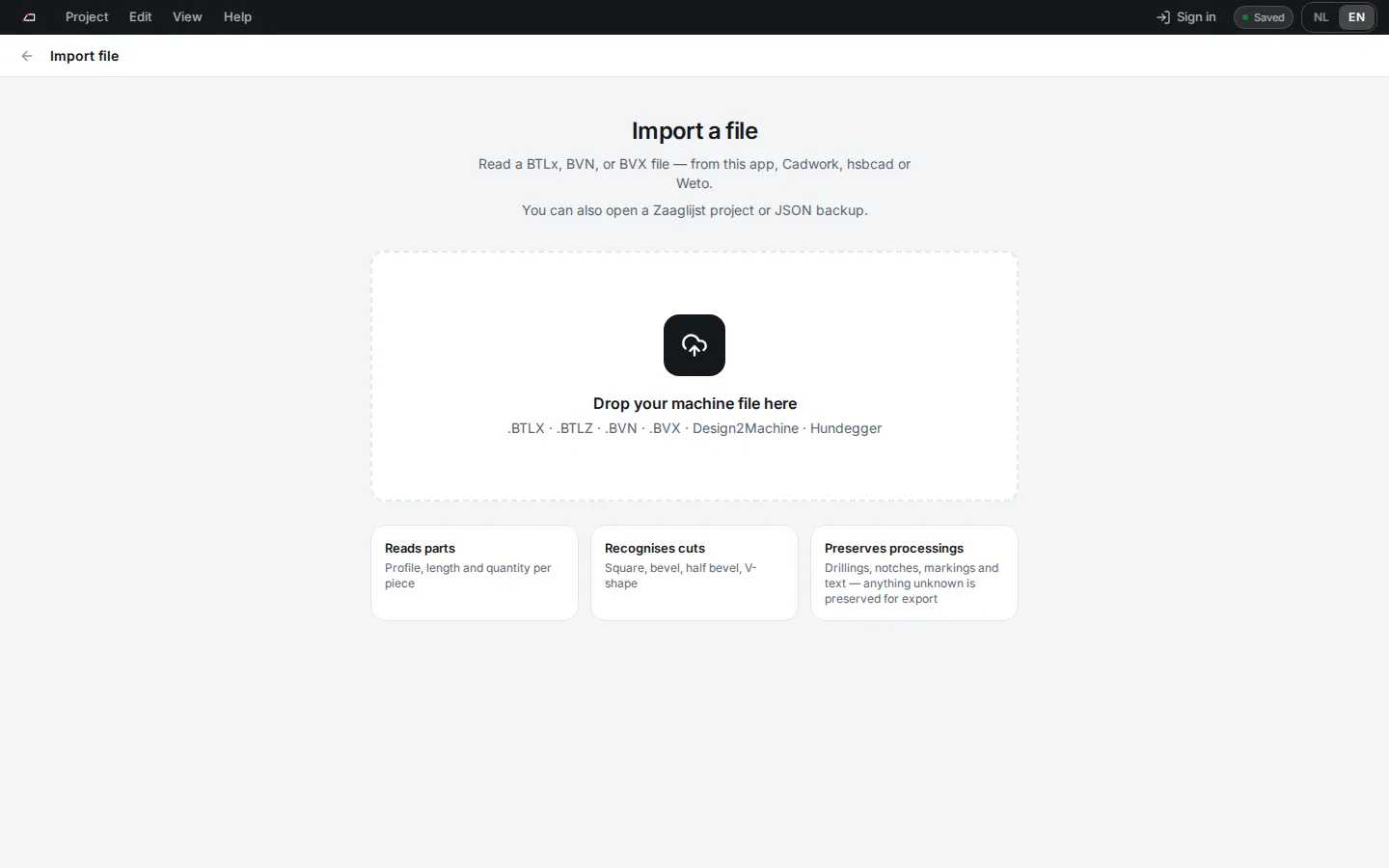
Import file reads a machine file from this app, Cadwork, hsbcad or Weto and turns it into a project.
Import a file
Section titled “Import a file”- On Projects, click Import file.
- Drop the file on the page, or click Choose file.
- Check the list under Parts read: parts, pieces, profiles and issues.
- Edit the project name, job number, client and location if needed. A file named like
24105_PROEF 24105.bvxfills in job 24105 and the name PROEF 24105. - Click Create project.
What it reads
Section titled “What it reads”| File | Notes |
|---|---|
BTLx (.btlx, .btlz) |
BTLx 1.0 up to 2.3.1. A .btlz file can be up to 8 MB. |
BVN (.bvn) |
Hundegger fixed-column files. |
BVX (.bvx) |
BVX1 and BVX2, in UTF-8, UTF-16 or Windows-1252. A file from a newer BVX 2 version opens with a note to check the parts. |
Project or backup (.json) |
Opens as a new local project with Open project copy. Your other projects stay as they are. |
The app looks at the file contents, so a renamed file still imports. Machine files can be up to 32 MB, JSON files up to 8 MB.
Your shop’s BVX holes and saw cuts can use their own reference frames. The demonstrated straight holes on long faces and saw planes open in their proper place; an untouched part keeps those frames when you export it, and work you edit uses the usual frames. Plain holes in older BVX1 files also open, with a note to check the producer’s starting offset and depth before machining.
A BVX file from CAMBIUM goes back as BVX. A part that CAMBIUM lets begin before its zero point, as it can where a start cut leans out, is moved to begin at zero, machining and all. A reference to a CAMBIUM template on kept machining is left out, with a note on its part. A part you leave unchanged keeps CAMBIUM’s own settings, such as how the part is turned for the machine or whether it is rest wood; a part you change goes out without them, and the export lists which it left out. The import warns about a part CAMBIUM marks as rest wood, an offcut it keeps for later. CAMBIUM writes a splinter-free setting on the operations that have one, and the app counts it only where it differs from the default, so an export to BTLx or BVN lists only real losses, each with its part. A project you imported before this change gets the same cleanup when you open it. A BVN macro CAMBIUM could not convert goes back unconverted, and the export asks you to accept that.
A few of CAMBIUM’s own forms are read even though no machine has confirmed yet how the app reads them: a pocket with a sloping floor, a narrow lap that CAMBIUM wrote as a blind slot, a dovetail socket, a dovetail tail, text, a free outline, which comes in as a free contour, a tenon whose shoulder leans, as on a brace, and a mortise turned in its face. The shop’s own tenons, rounded corners and all, open as tenons you can edit, and its tails as dovetail tails. Each gets a note on its part that says what is still open, and the note stays on the operation until you change it. Left unchanged, it goes back to BVX as CAMBIUM wrote it.
The shop’s dovetail sockets open as sockets you can edit, also beside other machining: a bolt through one, a bore beside it or another socket on the other face. A socket the app still cannot cut beside the part’s other machining, such as one a lap or a mortise takes timber from, is kept as CAMBIUM wrote it, and so is a socket with values outside the form the app reads. A tail from another program’s BVX, and every tail in a BVN file, is kept as it came. From BTLx, dovetail tails and the dovetail sockets on long faces open as ones you can edit; a socket in an end face is kept.
What the app could not read
Section titled “What the app could not read”Each part lists the machining it keeps under Kept machining: what each element is, its own name in the file (such as ArchCut), where it sits along the part when the file says so plainly, and why the app keeps it. The import review names them per part before you create the project, and the cutting list PDF and the technical specification print them by name. A kept saw cut that takes nothing away from the part is listed on the part only, so the shop never reads it as a cut past the end. An element from a BVX1 file says it stays in the original file, because no export writes it. The 2D view marks each one with a small not read tick at its position, on the face it works on. It draws no shape there, because the app does not know the shape. A part that keeps machining gets a warning, so the project no longer reads as all valid.
Remove takes an element off the part, so no export writes it, and undo brings it back. Use it when an export stops at a kept element, for instance after you changed the part’s length, or for a BVN macro CAMBIUM refused: sent back unchanged, CAMBIUM refuses it again, so remove it and add the operation in the app. The export’s message names the element to remove.
End cuts
Section titled “End cuts”The saw cuts at the ends of a BVX part come in as the shape they cut, so the drawings and the 3D view show them. An end plane that runs past the part at some corners, as on a rafter cut to length, comes in as that plane plus the square end of the part. An end cut the app cannot show is kept for export, and the import names the part and the end: the app draws that end square. You can still change the other end; change that end itself, and the export asks you to remove the kept cut first.
Machining straight into the end of a part, such as the hole and the plate seat of a post base, comes in as work you see in its end view: holes in the ends of a BVX part, and the mortises and plate seats CAMBIUM writes in its start end, as well as BTLx drillings, mortises, pockets, slots and free contours on the end sides, each with a note on what no machine has confirmed yet. Left as it came, on a part you leave as it came, such work goes back into the BVX file as it was read. Change it, and it is written anew: until the shop has confirmed that kind of work, the BVX and BVN you send the shop leave most of it out, the shop test pack carries it, and the export names each one. Where an end is cut at an angle, or keeps other machining from the file, its work stays kept, the note says why, and each end view counts it as not read.
A slit straight into a square end that opens through the section now goes into BVX as the same lengthwise slot on its long face, with a note to check it. A hidden end slit still goes into the shop test pack only.
Two saw cuts that meet in a knee or a point come in as the half bevel, double bevel or double tilted cut they make, from BVX and BVN alike, so a part the app wrote comes back with the end shape you drew. In BVX the part’s length is the reach of its cuts, as CAMBIUM writes it: an end set back comes back on a shorter part.
A saw cut beside a part that takes nothing away goes back as it came while the part is unchanged. Change the part’s length or an end, and the cut is left out with a note instead of stopping the export.
A step joint can go on an end of an imported part where the rest of the part leaves room: not beside a tenon, a pocket or machining the app cannot edit, and only opposite a square, single bevel or compound end. The Add dialog offers it only there. The joint’s own saw cuts replace the file’s end cut, and when you remove the joint, the end gets its cut from the file back.
Large jobs
Section titled “Large jobs”A backup and the cloud accept a project of up to 8 MB. This device keeps all your projects together in less room than that, about 5 MB in Chrome. A project that does not fit cannot be saved on this device, and while it is there, changes to your other projects are not saved here either. That is why a project above 4 MB comes in with a note.
The original file travels inside the project, compressed, so you can always download it again. That makes a big difference for a CAMBIUM job that is mostly nesting data: one 5 MB job now makes a project of about 2 MB. A job made mostly of parts can still make a project bigger than the file.
Before it creates the project, the app works out how big it will be:
- Above 4 MB, the parts come in with a note. Keep the original file and download a backup once the project is open. If the app then says it could not save on this device, download the backup and remove the project here, so your other projects save again.
- Above 8 MB, the file is refused, with the reason. Split the job into smaller files and import them one at a time.
Adding parts with Import into project counts the project you already have too. If the parts would take it past 8 MB, import the file as a new project instead.
To add parts to a project you already have, use Import into project on the Export page.
Imported parts keep their numbers. Only a number the project already uses gets a new one, and the preview shows it, for example 123 → 150.