Undo and redo
Deze inhoud is nog niet vertaald.
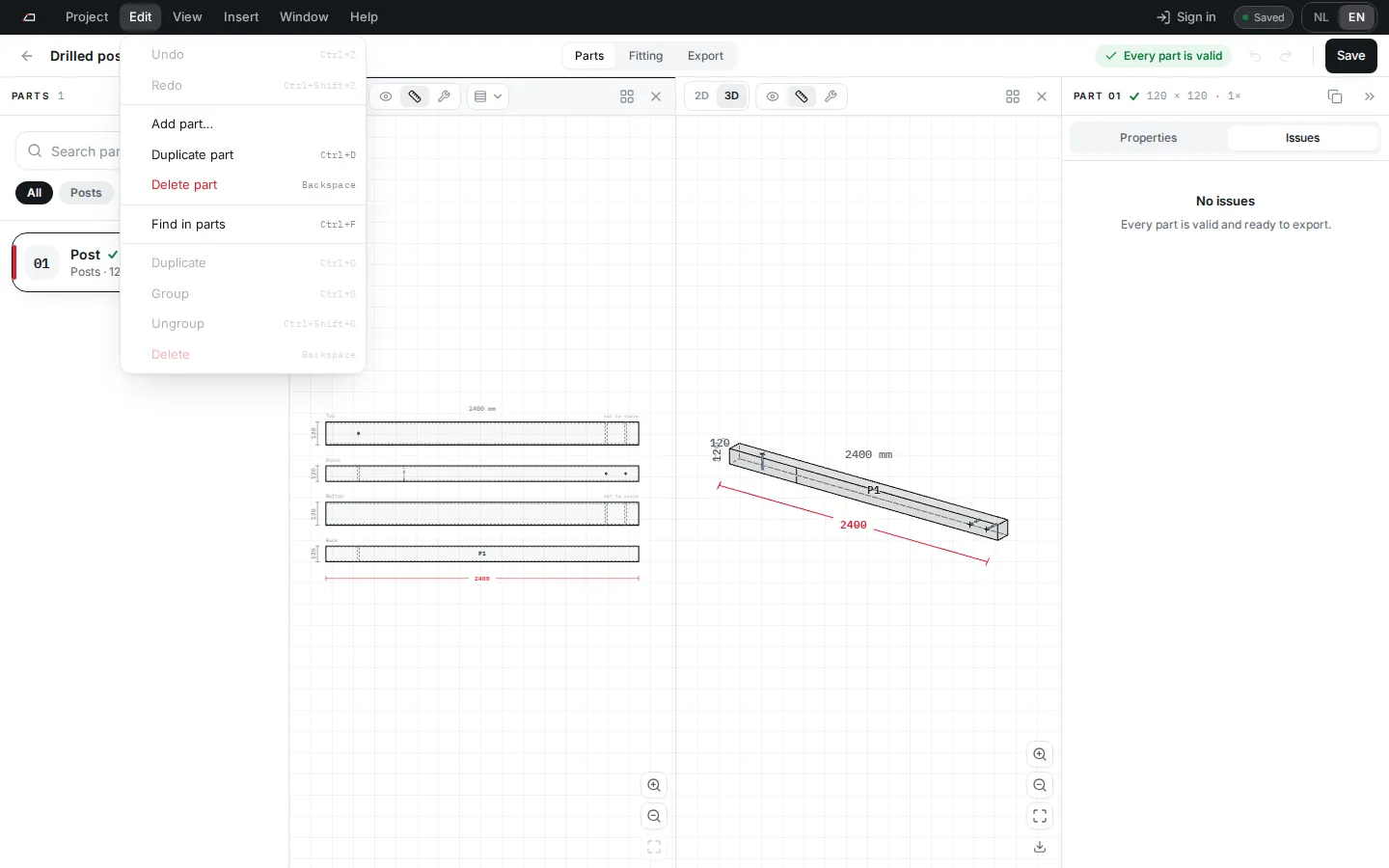
- Click the undo or redo arrow in the project bar, or use Edit > Undo and Redo.
- Press Ctrl+Z to undo and Ctrl+Shift+Z or Ctrl+Y to redo. On a Mac, use ⌘.
- A message names the step, for example “Undone: Length changed”. Hover an arrow to see the step before you click.
How the history works
Section titled “How the history works”- Each project has its own history of up to 100 steps.
- Quick changes to the same field count as one step.
- The history lasts until you reload or close the page. It is not saved and does not sync to the cloud.
- Deleting a project, or loading a newer cloud version of it, clears its history.